
Use an editable spreadsheet or a print-ready PDF that includes topic, exam-board strand, RAG status, confidence rating and a mistake log, then copy a ready-made version instead of building one from scratch. Downloadable timetables and topic lists are available for use in Google Sheets or Excel, so you can set your first RAG ratings today.
TL;DR:
- Map every topic to your exam board’s specification, then record planned dates, session types, confidence and RAG ratings, results, mistakes, corrective actions, and retest dates.
- Use a spreadsheet for automatic sorting, color flags, and overdue retest counts; choose a printable PDF if you prefer a visible, manual weekly plan.
- Give red topics up to three times as many sessions as green ones, and schedule practice in 30 to 45 minute blocks with breaks.
- Target knowledge gaps with ten focused questions, method errors with a worked example, and careless slips with twenty quick calculation drills under light time pressure.
- Book each retest when the session ends and check recall again after a week or two; repeated errors should shape next week’s priorities.
Table of Contents
- What a good maths revision tracker needs
- Choosing a template format: spreadsheet, PDF or digital board
- How to set up and run your tracker week by week
- Turning your mistake log into targeted practice
- Where MathVault templates fit into your tracker
- Treat the tracker as a decision tool, not a checklist
- Download a ready-made MathVault timetable and start tracking today
- FAQ
- Sources
- Essential documents and downloads
What a good maths revision tracker needs
A tracker only earns its place in your revision if it tells you what to do next, not just what you have done. Every topic should map to a national content strand such as Number, Algebra, Ratio, proportion and rates of change, Geometry and measures, Probability or Statistics, which the GCSE subject content sets out for GCSE, and which the A-level subject content sets out in more depth for sixth-form study.
Beyond the topic itself, a working tracker needs columns that turn a list into a plan:
- Planned date and session type (new learning, timed practice, or review).
- Timed length, so you know how long each slot actually took.
- Confidence rating and RAG status (red, amber, green) before and after the session.
- Actual result from a past-paper question or practice set.
- Mistakes logged, with a corrective action and a next re-test date.
RAG status is the simplest decision tool in the sheet: green means leave it for spaced review, amber means schedule another session within the week, and red means it goes to the top of your next plan. A repeated amber on the same topic across two sessions should convert automatically into extra time rather than another identical attempt. In practice, a single row might read: Trigonometric graphs, Geometry strand, practised on Tuesday for 40 minutes, scored amber, two sign errors logged, re-test booked for the following Monday.
Choosing a template format: spreadsheet, PDF or digital board
The format you choose changes how much the tracker does for you. An editable spreadsheet in Google Sheets or Excel can auto-sort by date, apply conditional formatting to flag every red topic in one colour, and use a simple formula to count how many re-tests are overdue. That makes it the strongest option if you are comfortable with basic formulas and want the sheet to flag problems for you.
A printable PDF suits a different habit: pin it to a revision wall, tick off sessions by hand, and keep the whole week’s plan visible without opening a laptop. It works best for low-distraction review, though it will not count or sort anything for you.
Editable documents and simple digital board apps sit in between. They suit visual learners who like moving cards between columns, but most require you to update progress manually rather than calculating it.
Before downloading any template, check two things:
- That topics are mapped to your actual exam board, since AQA, Edexcel and OCR group content slightly differently.
- That you can edit it directly, ideally as a Google Sheets or Excel file rather than a locked PDF.
How to set up and run your tracker week by week
Setting the tracker up properly takes one sitting. After that, it should take minutes a day to update.
- List every exam and paper date first, then import your full topic list from your exam board’s specification so nothing is missing from the start.
- Mark your honest starting confidence for each topic, then weight your sessions: a weak (red) topic generally needs up to three times as many sessions as a strong (green) one.
- Run sessions in 30 to 45 minute blocks with a short break, alternating problem practice with worked examples so you are not just repeating the same skill.
- Set a re-test date for every topic you practise and record the date of your last test each time, using conditional formatting to flag any re-test that has slipped past its due date.
Pro Tip: Book the re-test date in the same sitting you finish the original session, not later, so it never gets forgotten.
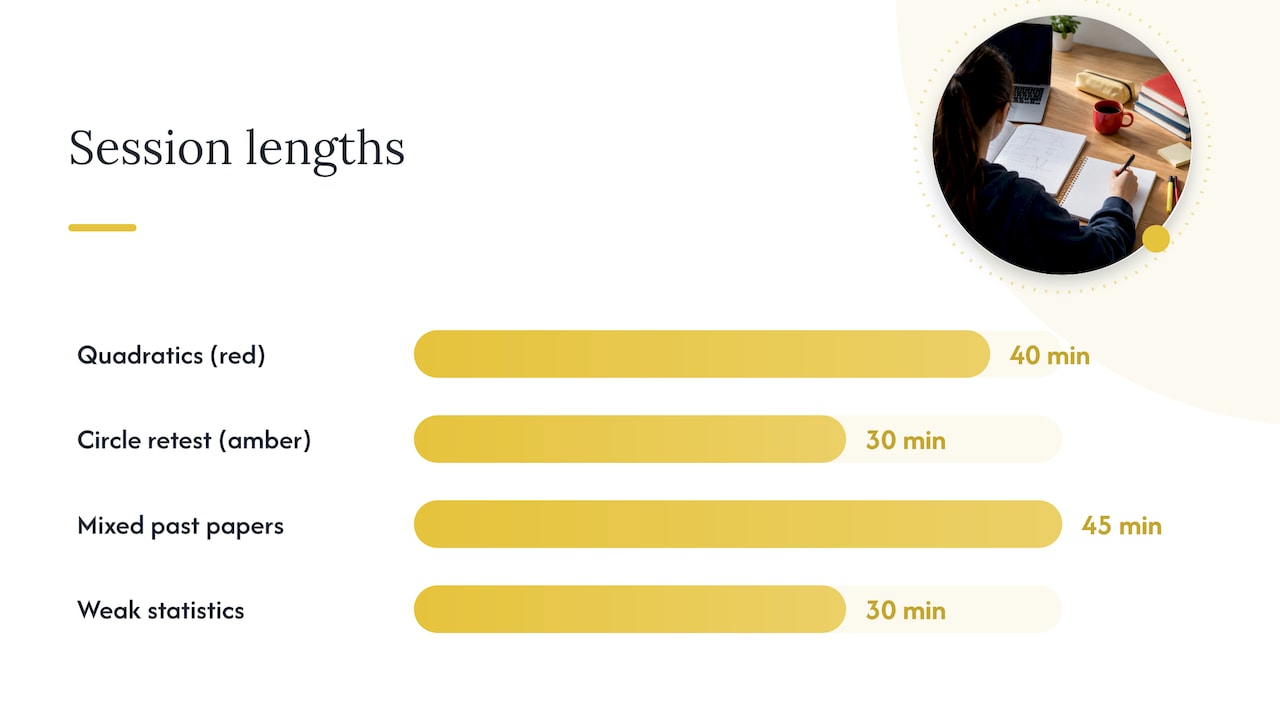
A sample week with five sessions might run: Monday, 40 minutes on quadratic equations (red); Tuesday, 30 minutes re-testing circle theorems last marked amber; Wednesday, 45 minutes of mixed past-paper questions across two topics; Thursday, 30 minutes on a single weak statistics topic; Friday, a short review slot to update RAG status and set next week’s priorities. Spacing sessions this way, rather than drilling one topic for a whole week, gives each topic time to fade and be retrieved again, which is what makes the re-test meaningful.
Turning your mistake log into targeted practice
A tracker that only records scores misses the most useful information: why a mark was lost. Each mistake entry should carry a question reference, the page or timestamp, a short description of what went wrong, and an error type: knowledge, method, or careless.
That error type decides what you do next:
- A knowledge gap becomes ten targeted questions on the specific technique you missed.
- A method error becomes a short worked-example session to rebuild the steps.
- A careless slip becomes twenty quick calculation drills under light time pressure.
Log a retest date and result against every corrective action, and use the pattern of recurring errors to decide next week’s top priorities rather than revisiting topics at random. A useful habit is to re-test a topic after a gap rather than straight away, since a correct answer immediately after the lesson tells you far less about durable mastery than one given a week or two later.
Where MathVault templates fit into your tracker
Resources are available so you never have to start a tracker from a blank page. Board-aligned topic lists, fully worked solutions and downloadable revision timetables are designed to drop straight into the fields above.
- Use past papers or a quick diagnostic to set your first round of RAG ratings honestly.
- Copy a structured timetable, such as our 12-week A-level revision timetable, directly into your tracker to pre-fill planned dates and session types.
- Cross-check topic names against our AQA or Edexcel specification breakdowns so your tracker’s topic list matches your actual exam board.
Treat the tracker as a decision tool, not a checklist
Teachers use tracking data to decide where to intervene, not simply to confirm that revision happened. The real value sits in converting a cluster of repeated errors into a short, targeted mini-unit rather than another general review session. A five-minute reflection slot at the end of each week, where you actually look at your RAG colours and decide what changes, is what separates a tracker that drives progress from one that just records history.
— Oloru
Download a ready-made MathVault timetable and start tracking today
We host downloadable revision timetables, exam-board-aligned topic lists and past-paper packs built specifically for GCSE and A-level maths, so you can skip the setup and get straight into tracking your actual weak spots.
If you want a fully-built pacing plan rather than assembling one topic at a time, our 12-week A-level maths plan lays out sessions week by week, and our self-marking GCSE past papers give you board-aligned questions and solutions to populate your mistake log from day one. Copy either into Google Sheets, add the columns from this guide, and set your first RAG ratings now.
FAQ
What fields should a maths revision tracker include?
A working tracker needs the topic and exam-board strand, a planned date, session type, confidence or RAG rating, actual result, logged mistakes with error type, a corrective action and a re-test date. These fields turn a simple list into something you can act on each week.
Should I use a spreadsheet or a printable PDF?
A spreadsheet such as Google Sheets or Excel is stronger if you want automatic sorting and colour-coded flags for overdue re-tests, since it can auto-plan sessions around confidence and exam proximity. A printable PDF suits students who prefer a physical revision wall and are happy to tick progress off by hand.
How often should I re-test a topic marked red?
Re-test shortly after the original session, then again after a longer gap, moving the topic to amber or green only once it holds up under delayed recall rather than immediate repetition. The exact spacing matters less than being consistent: book every re-test date the same day you finish the original session.
Can MathVault’s templates replace building my own tracker?
You can copy downloadable timetables and board-aligned topic lists straight into a spreadsheet and add the confidence, mistake-log and re-test columns described above. That gives you a fully mapped tracker without building the topic list from scratch.
Sources
Essential documents and downloads
Start from the official GCSE subject content and A-level subject content to build an accurate topic list, use a revision timetable maker if you want an auto-planned schedule, and visit our MathVault homepage for the downloadable timetables and past-paper packs referenced throughout.
Leave a Reply